The latest communicator can communicate over GSM and Wi-Fi for improved speed and reliability.
If your communicator supports Wi-Fi, you will receive a banner the first time you open your panel home screen. Start Wi-Fi setup by tapping 'Set Up Wi-Fi'.
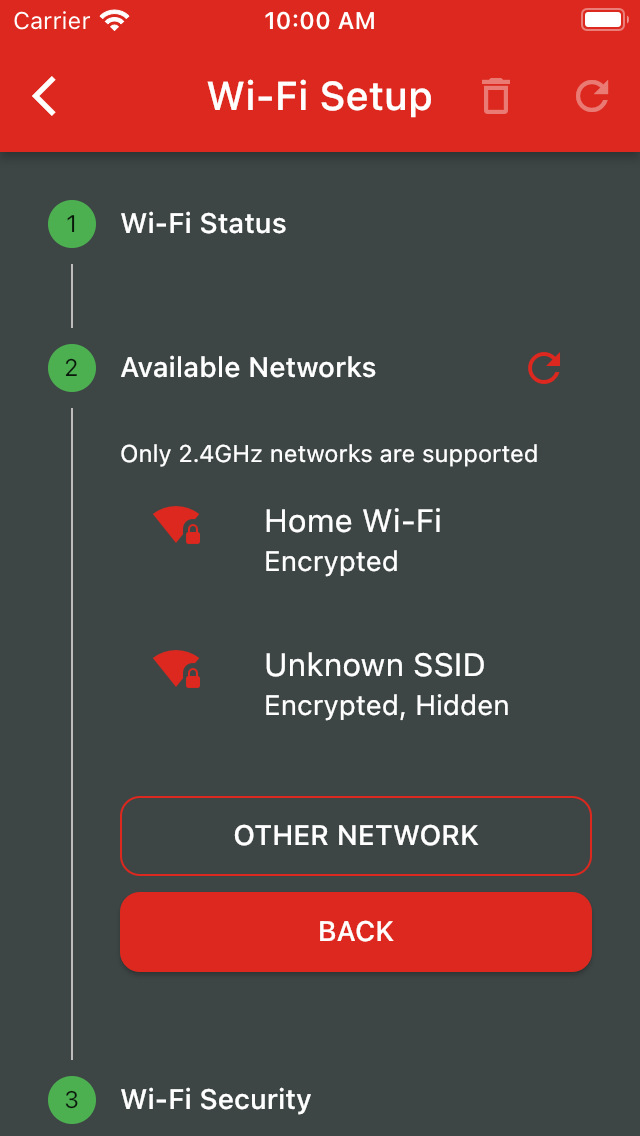
Please note that only 2.4 GHz networks are supported, and only DHCP IP assignment is supported.
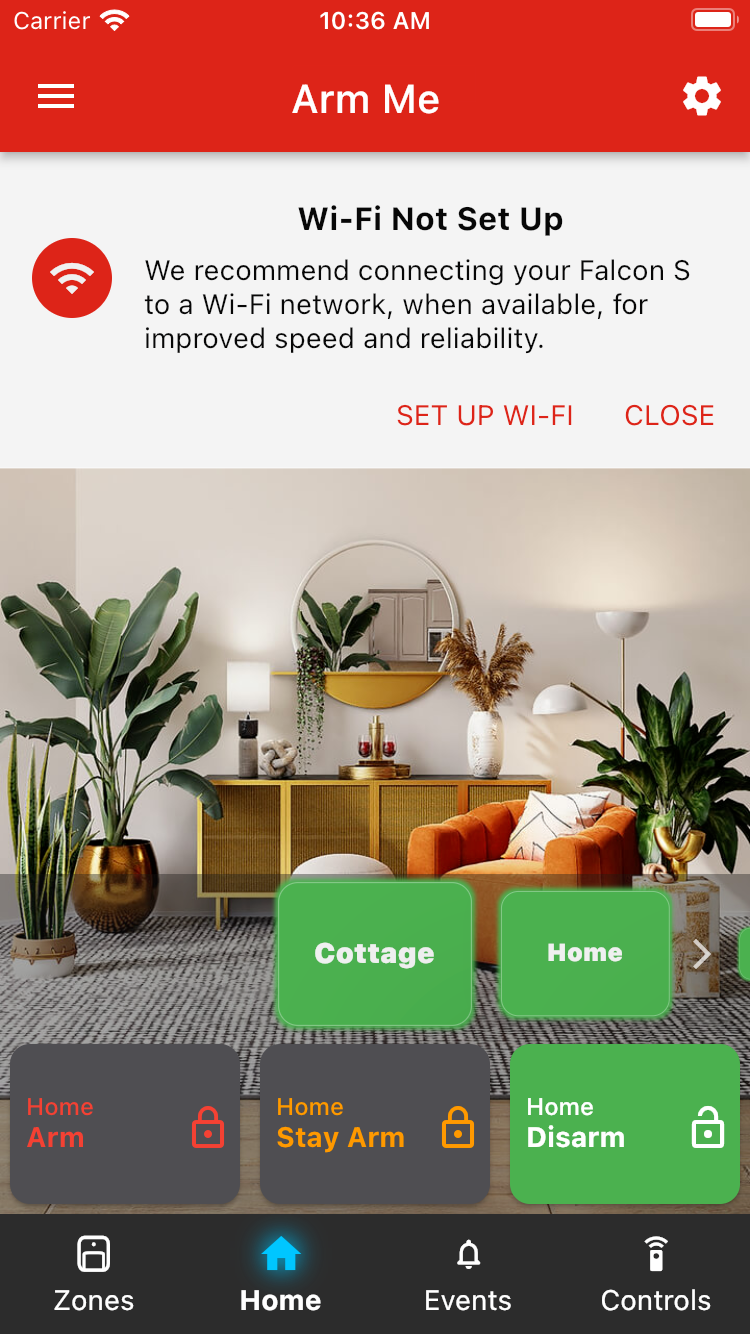
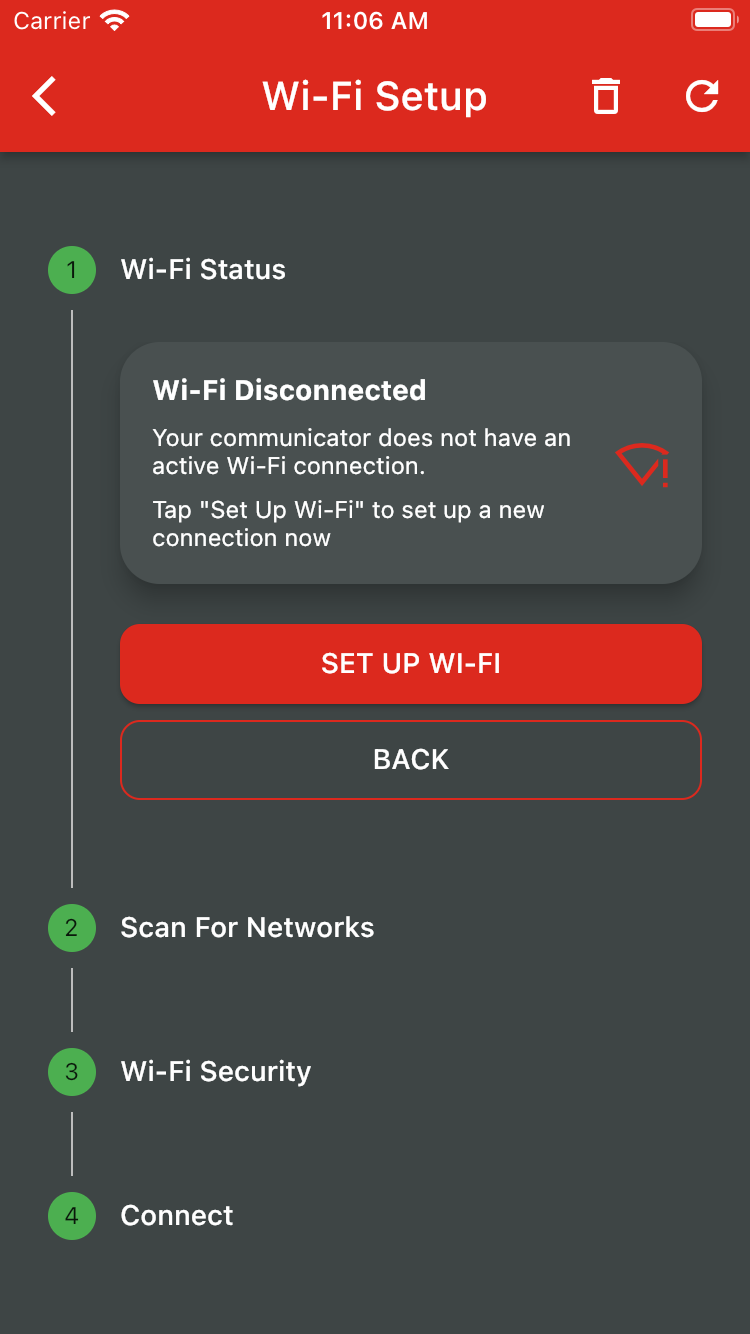
Once setup has been initialised, continue by tapping 'Set Up Wi-Fi'.
Choose the Wi-Fi network that you would like to connect to. Note that only 2.4 GHz networks are supported.
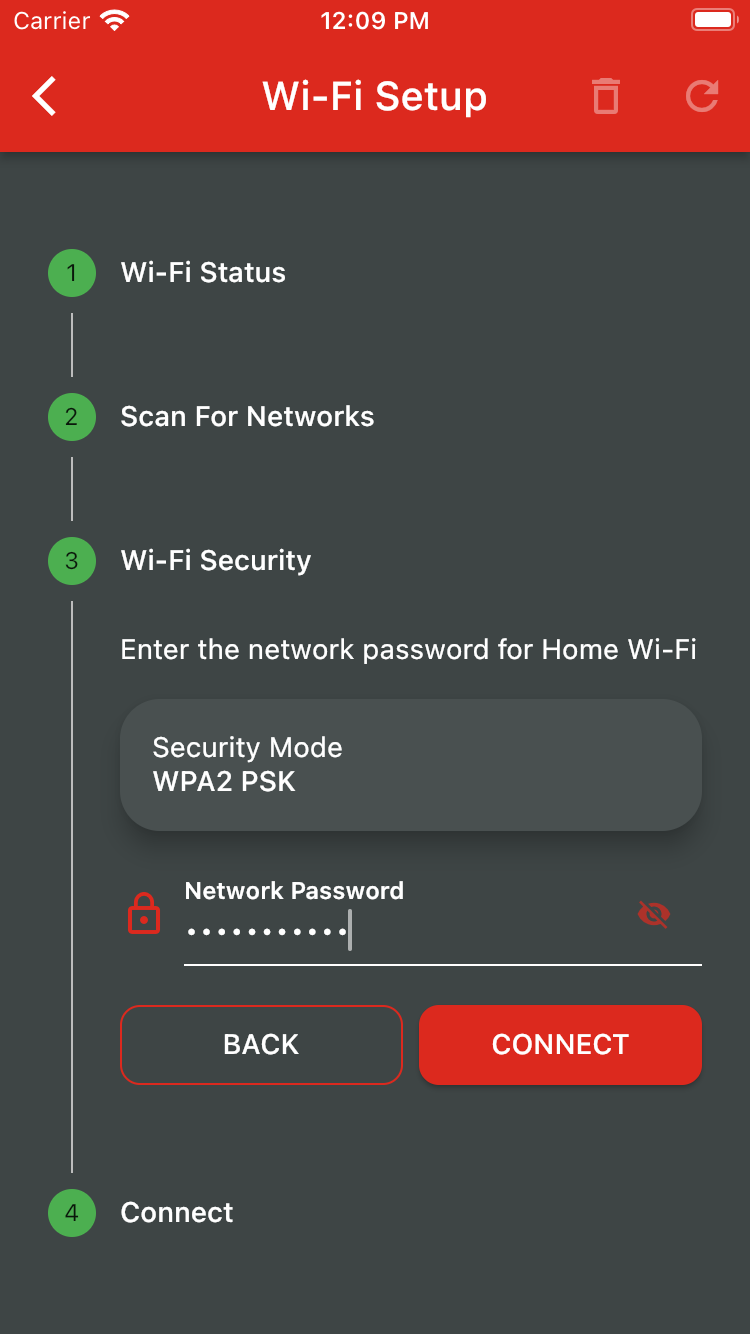
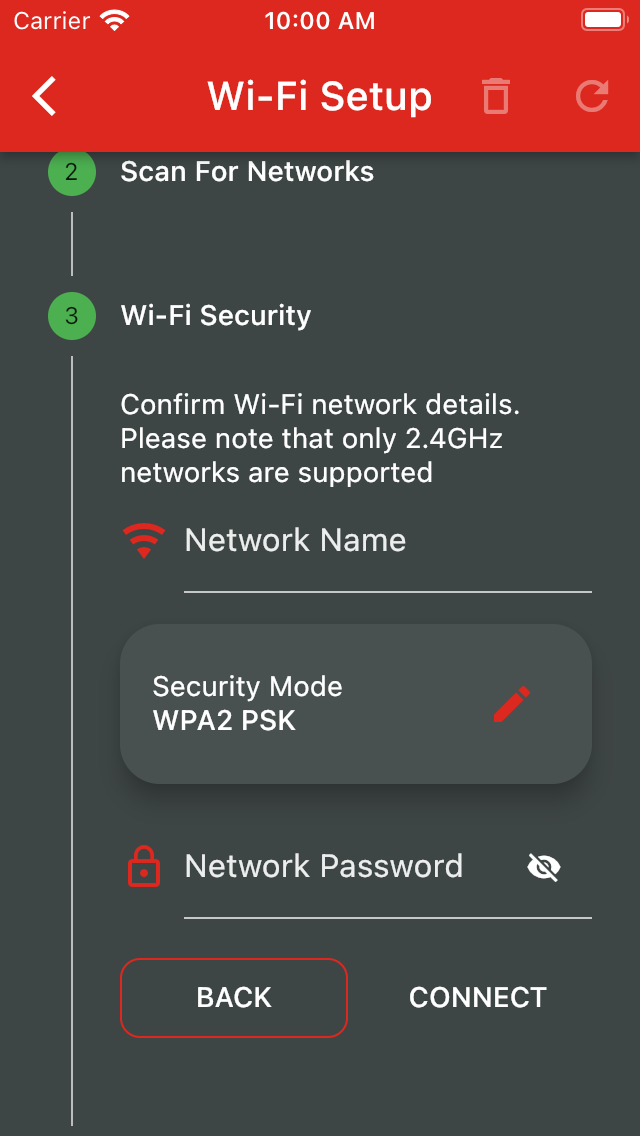
Next, enter the password for the selected Wi-Fi network and tap 'Connect'.
Hidden Networks are networks that do not broadcast their name / SSID. If your network is hidden, tap 'OTHER NETWORK' instead to manually enter the SSID, encryption type, and, if necessary, the password.
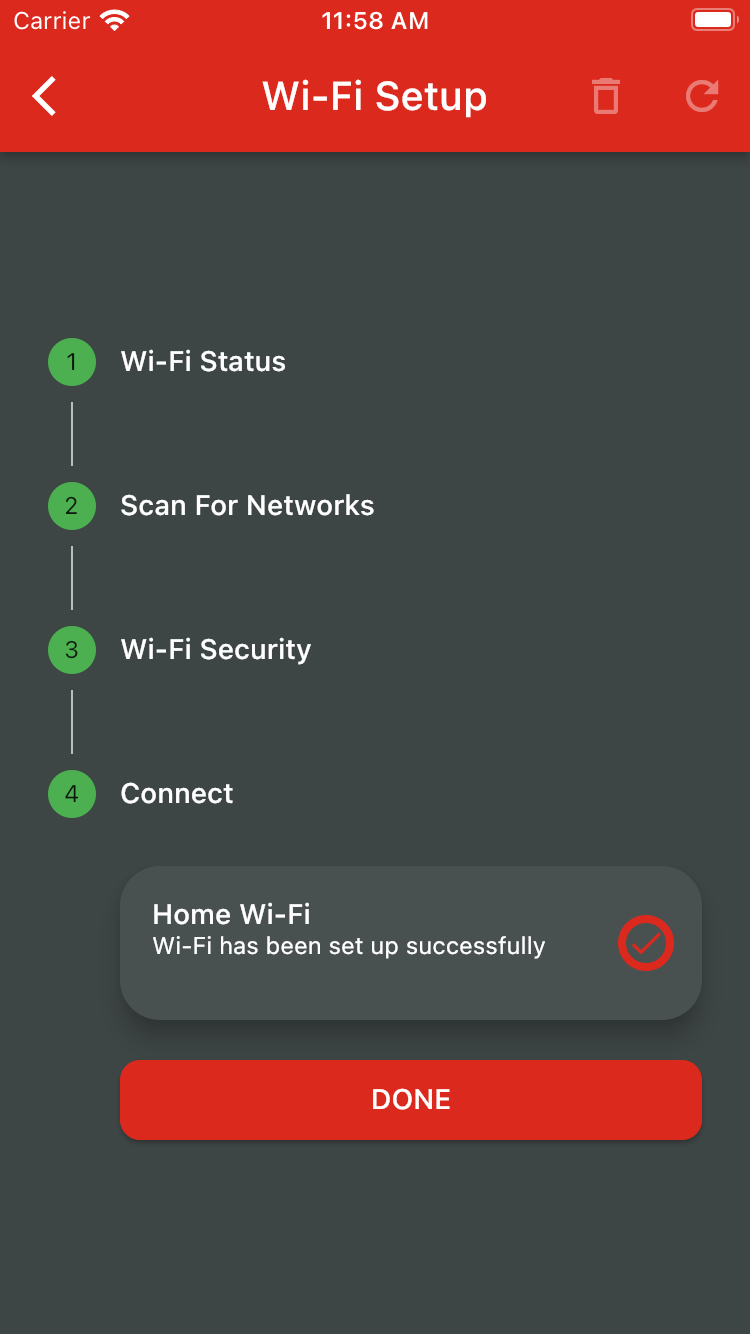
Your communicator will now attempt to connect to the Wi-Fi network using the supplied details. Congratulations, your communicator is now connected over Wi-Fi.
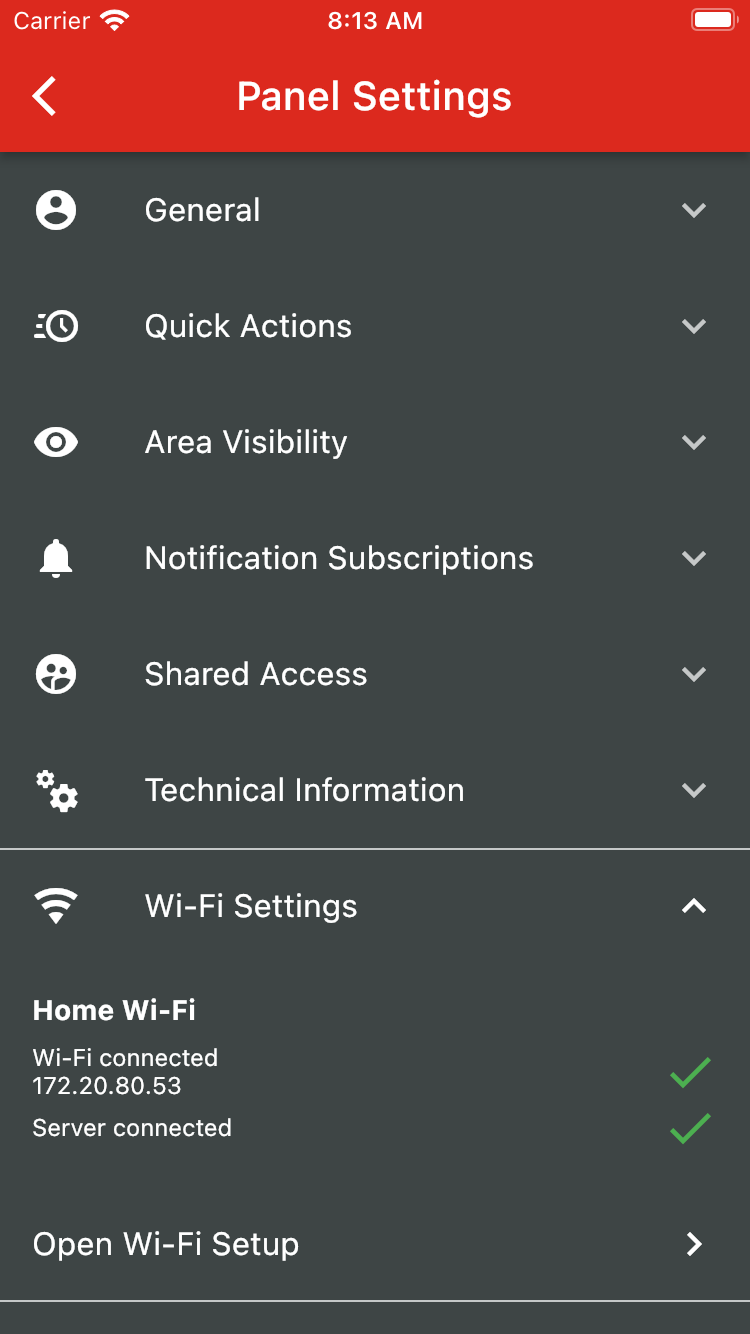
To update Wi-Fi settings, open the Wi-Fi Setting sub-menu on the Panel Settings screen and tap 'Open Wi-Fi Settings.
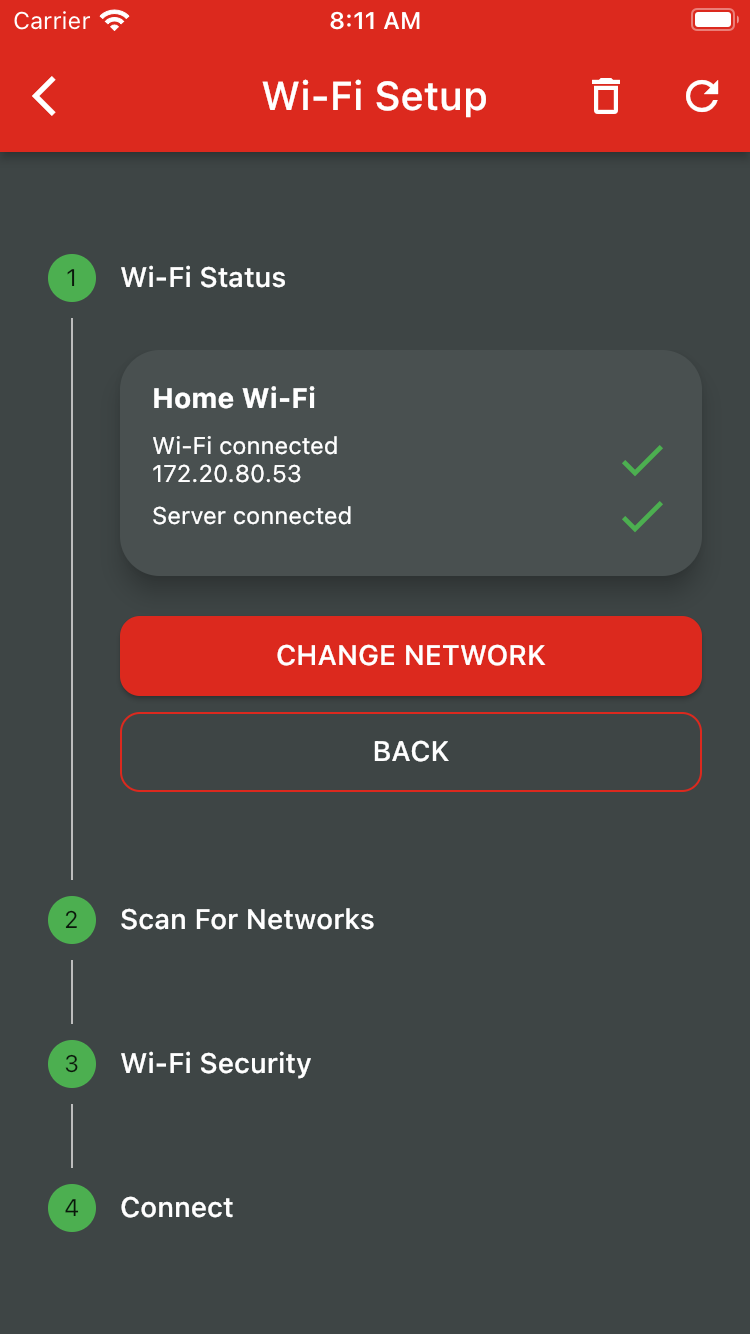
Tap Change Network, and then follow the steps outlined above to update your Wi-Fi configuration.
Advanced setup: To determine your communicator's MAC address, please look it up in your router's DHCP client list.
Was this article helpful?
That’s Great!
Thank you for your feedback
Sorry! We couldn't be helpful
Thank you for your feedback
Feedback sent
We appreciate your effort and will try to fix the article