It is very easy to add a panic button to your security app and your communicator installation.
These instructions are applicable for all Paradox, IDS, Texecom, DSC, Risco, and Orisec alarm panels linked to your Communicator.
-
Program one of the zones on the alarm panel to be a Panic Zone. You can program it as an Audible or Silent Panic zone depending on your preference.
-
Program the wiring type of the Panic zone on the alarm panel as Normally Open.
-
Configure your communicator's relay Output 1 to Pulse when activated. (Output 1 is configured to pulse by default).
-
Connect a wire from the common terminal of Relay Output 1 on the communicator, labelled as C1, to the Common terminal of a Panic Zone on the alarm panel.
-
Connect another wire from the Normally Open terminal of Relay Output 1 of the communicator, labelled NO1, to the Panic Zone of the alarm panel.
-
When Relay Output 1 on the communicator gets activated by the phone app, it will activate the Panic zone on the alarm panel which in turn will force the alarm panel to trigger a Panic event and send a Panic signal to the Control Room.
-
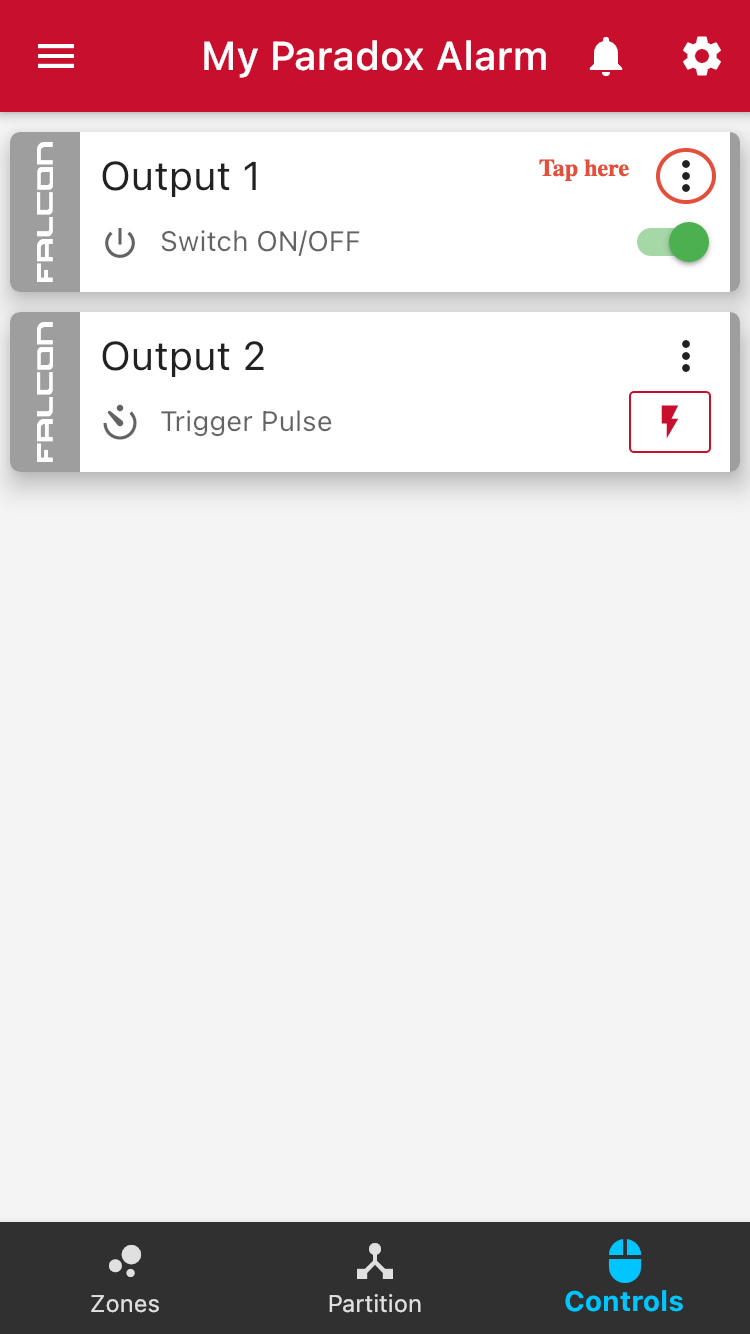
Inside the app, navigate to the controls tab. then tap on the three dots next to an output.
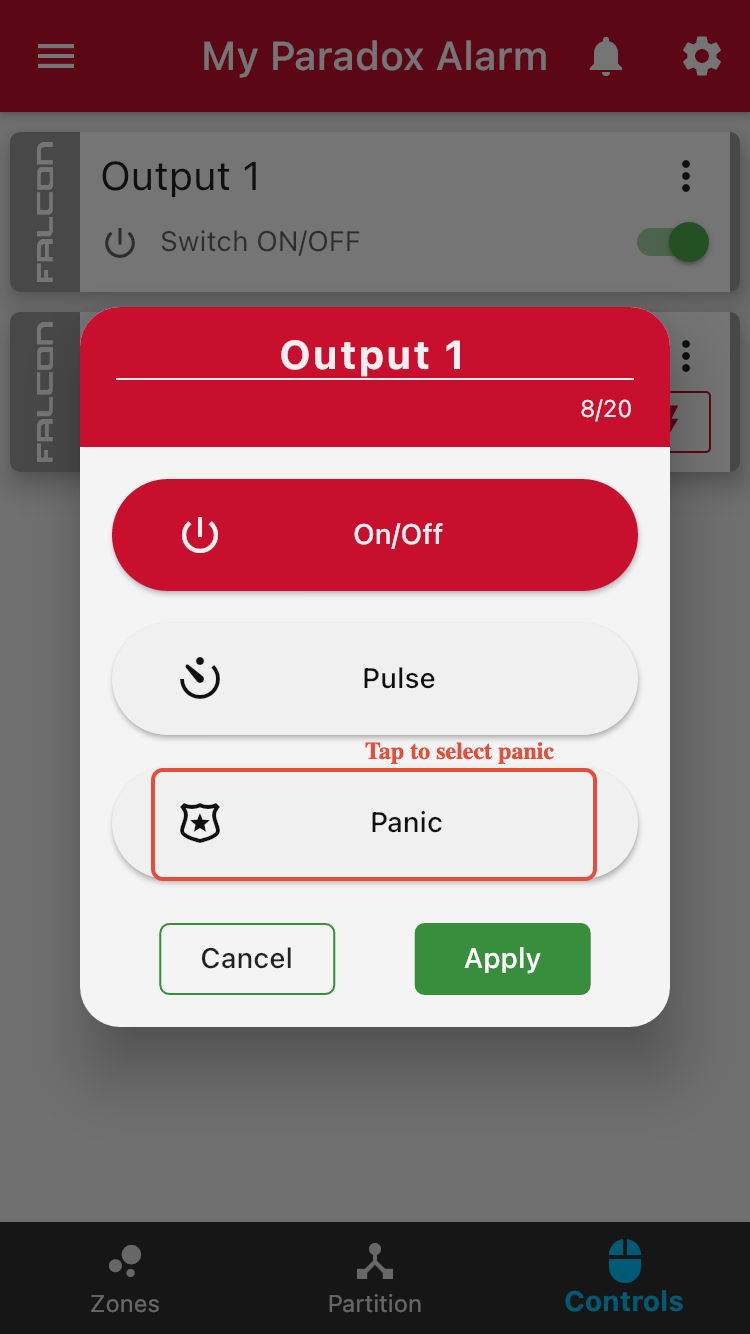
- Tap on the panic setting and then select which partition the panic is wired to.
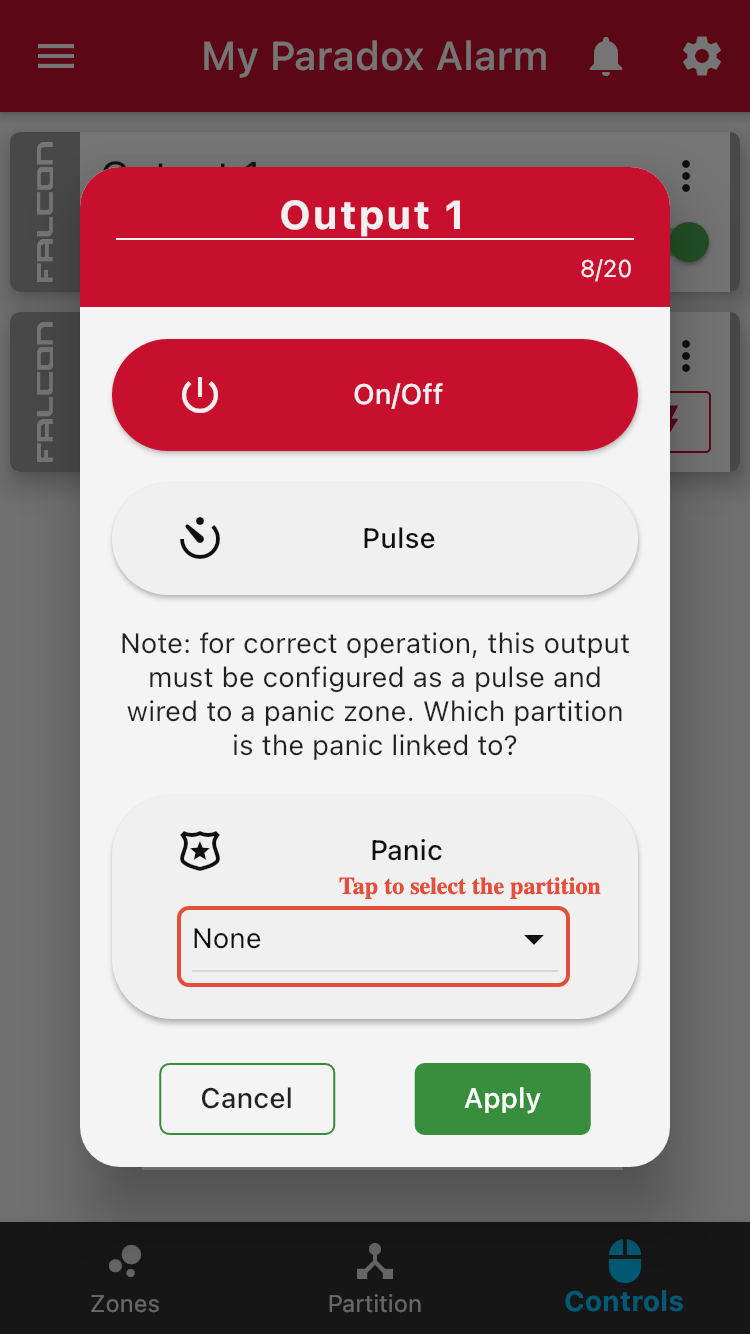
- Tap apply and the output will be set as a panic trigger.
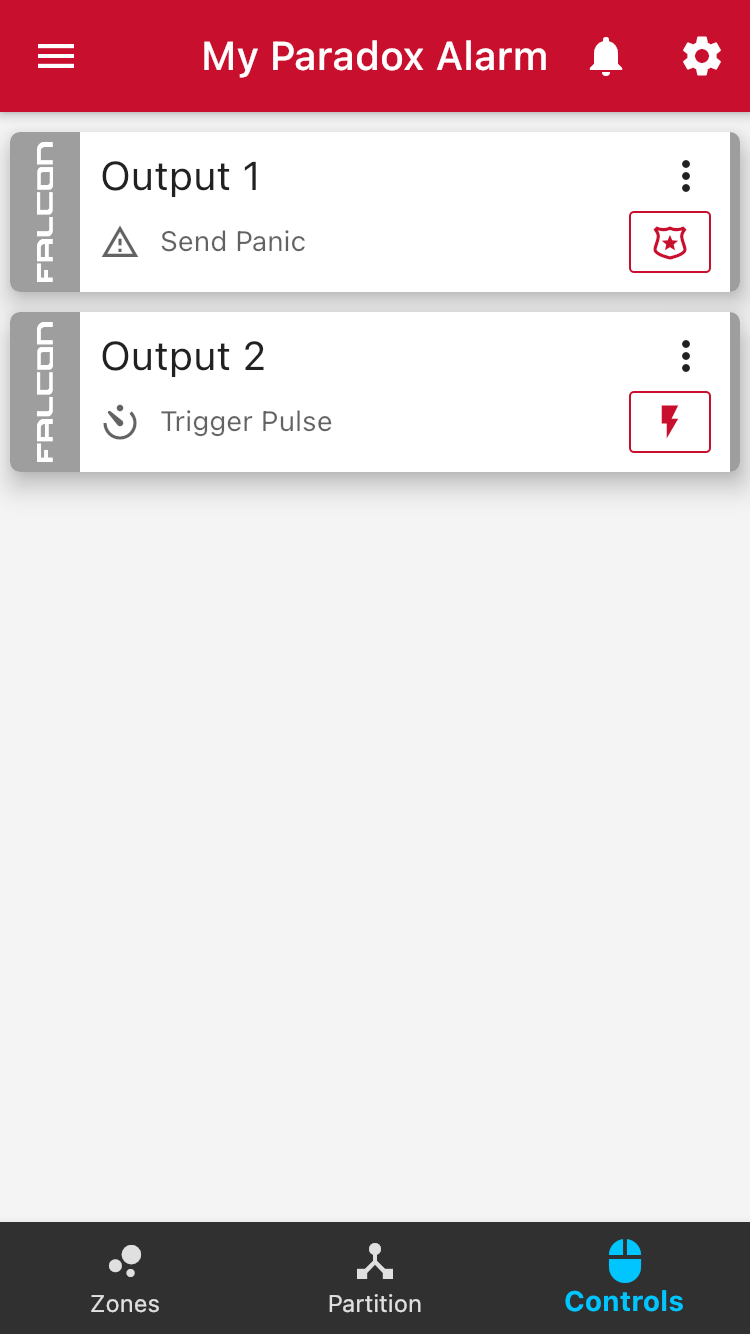
To configure output 2 as the panic button Follow steps 3 - 9 using output 2 instead of output 1.
Was this article helpful?
That’s Great!
Thank you for your feedback
Sorry! We couldn't be helpful
Thank you for your feedback
Feedback sent
We appreciate your effort and will try to fix the article