*Before you can install a device you will need to get access to the company (Client ID) the device belongs to. Click here to learn how to link a company.
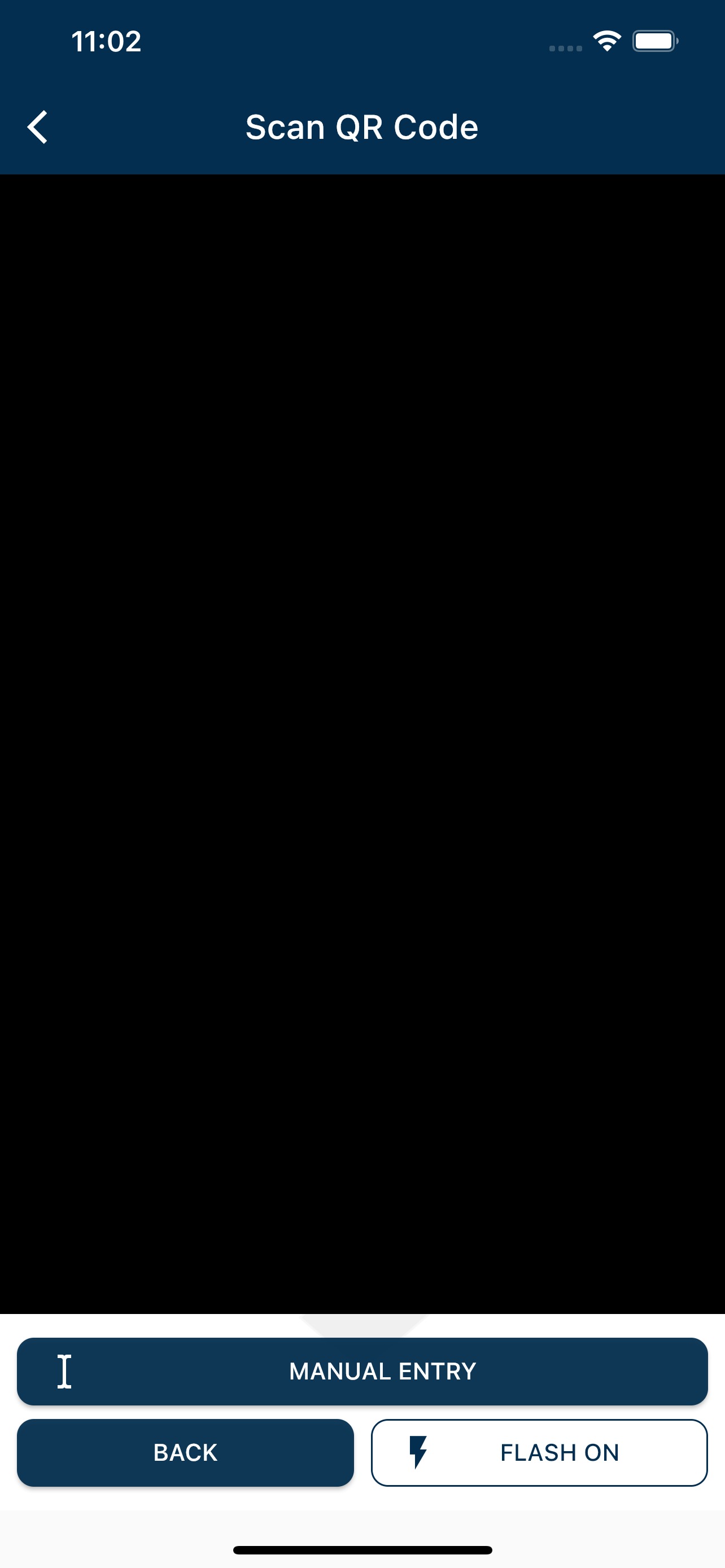
While on the home screen tap "INSTALL NEW" to be taken to the QR scanner screen. Either scan the qr code on the Falcon communicator or Rhino alarm system, or enter the serial number and verification code manually.
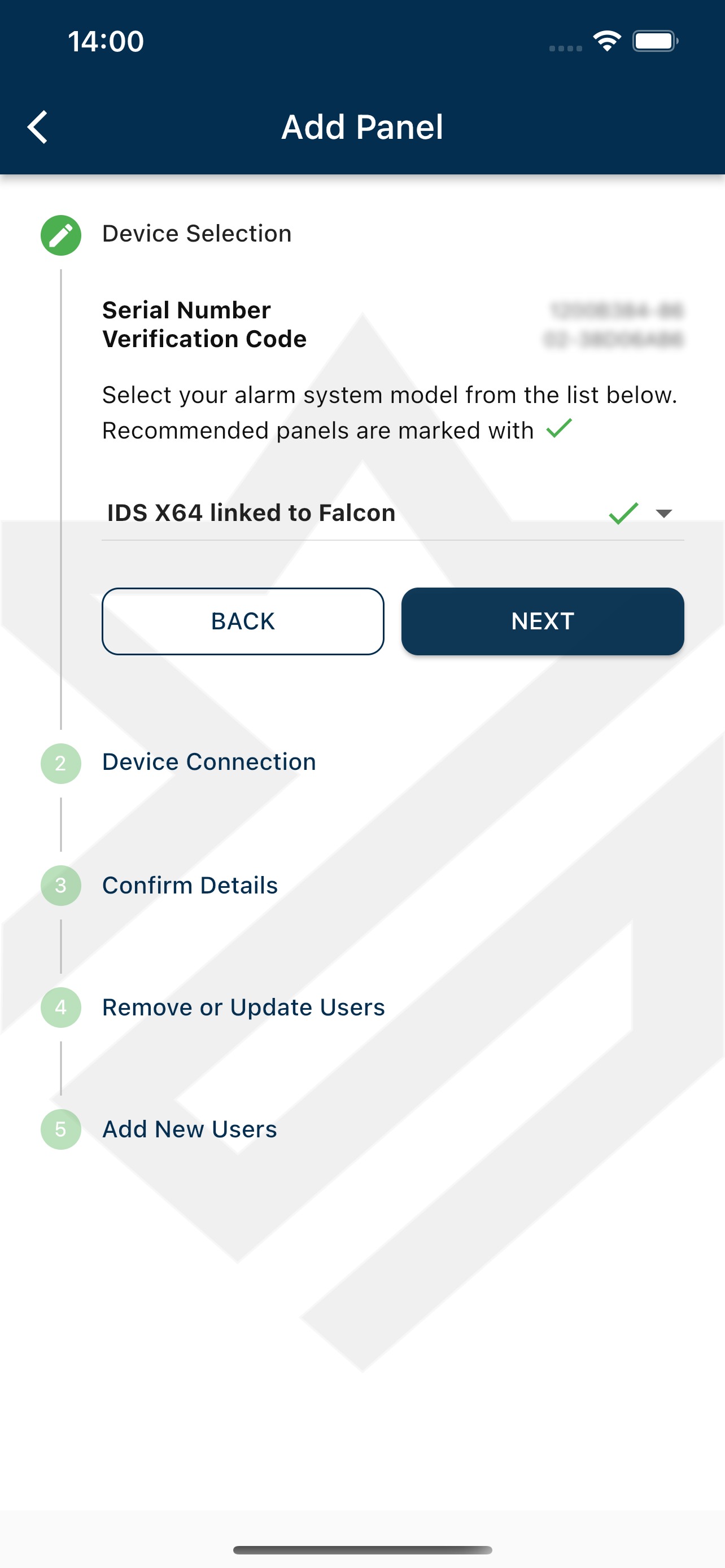
Select the device type
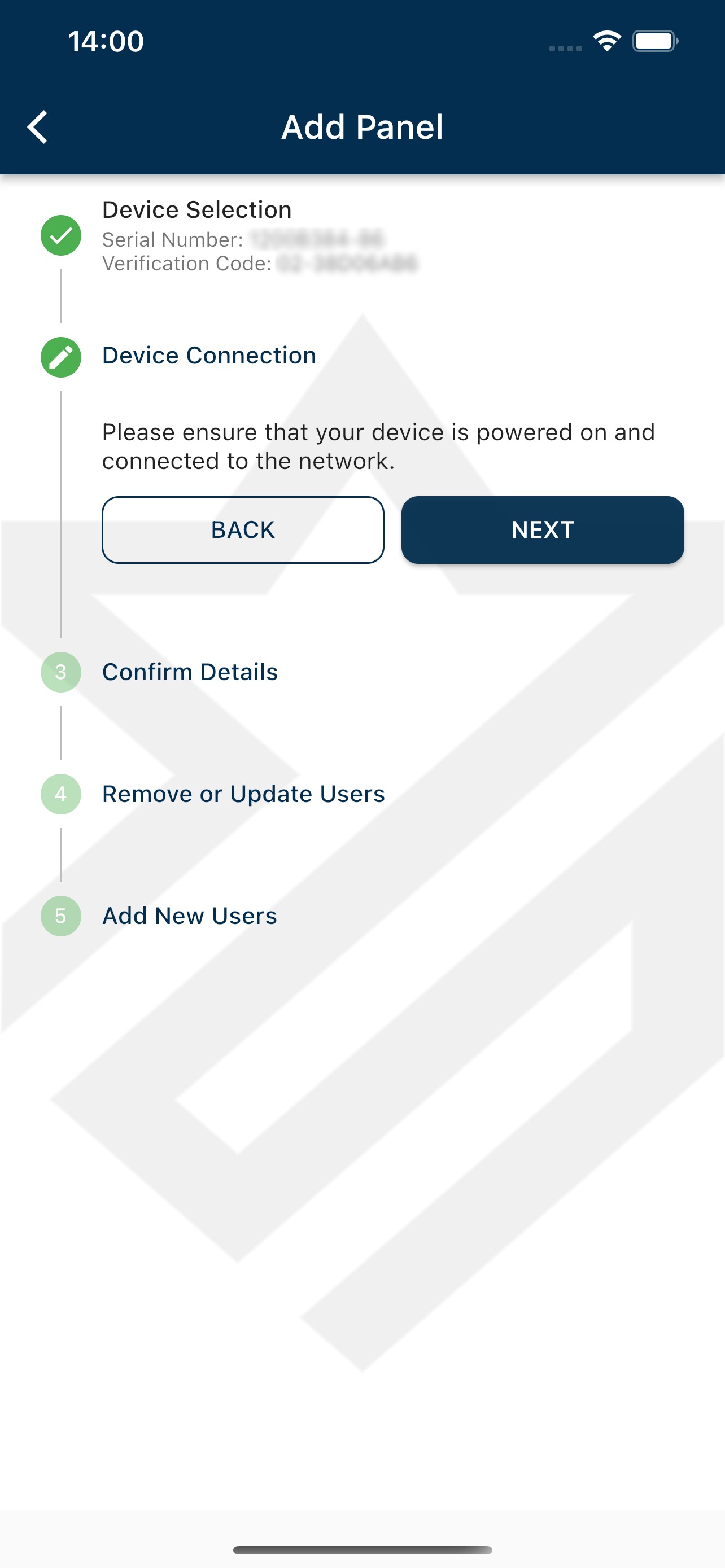
Confirm that the device has been turned on and is connected to the network.
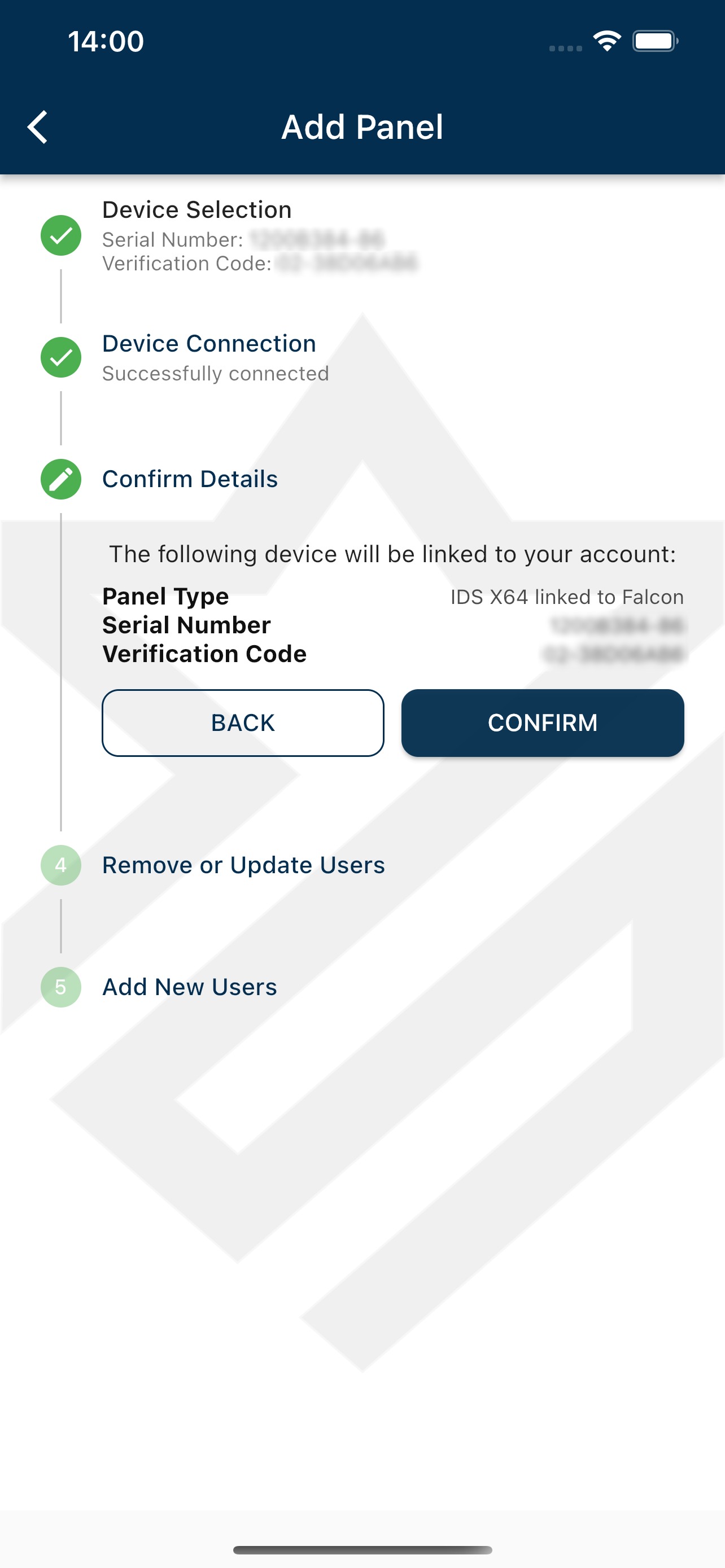
Confirm that the selected device details are correct
Remove or update users that are linked to the device
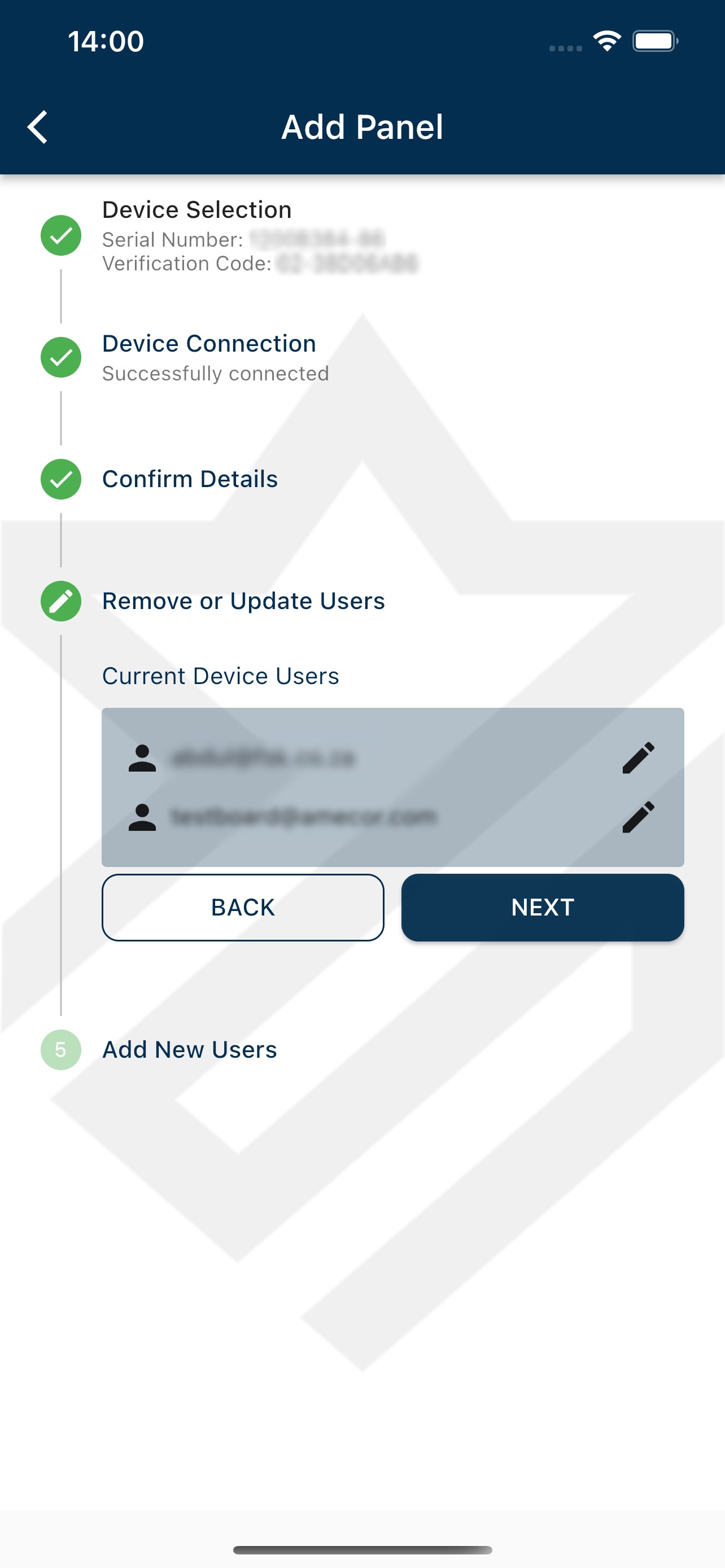
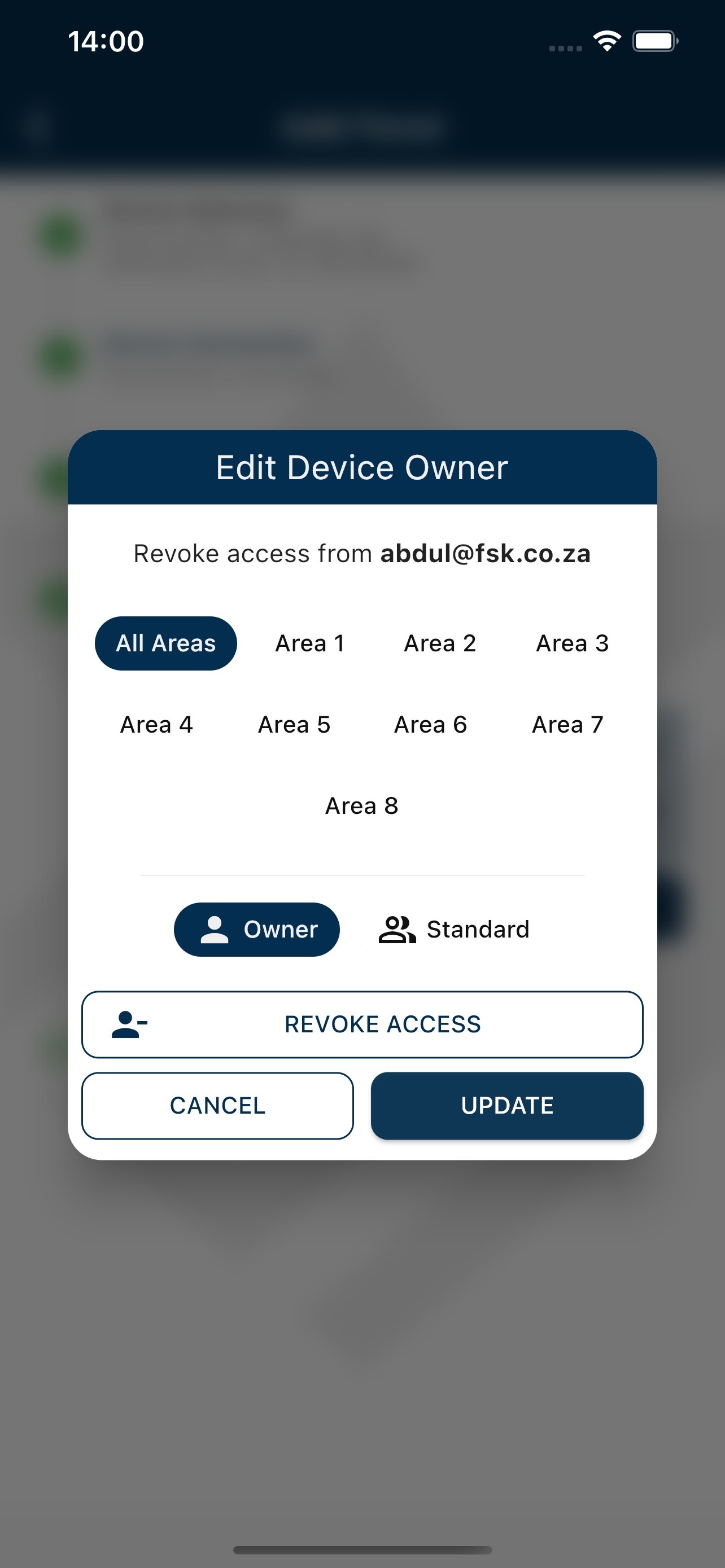
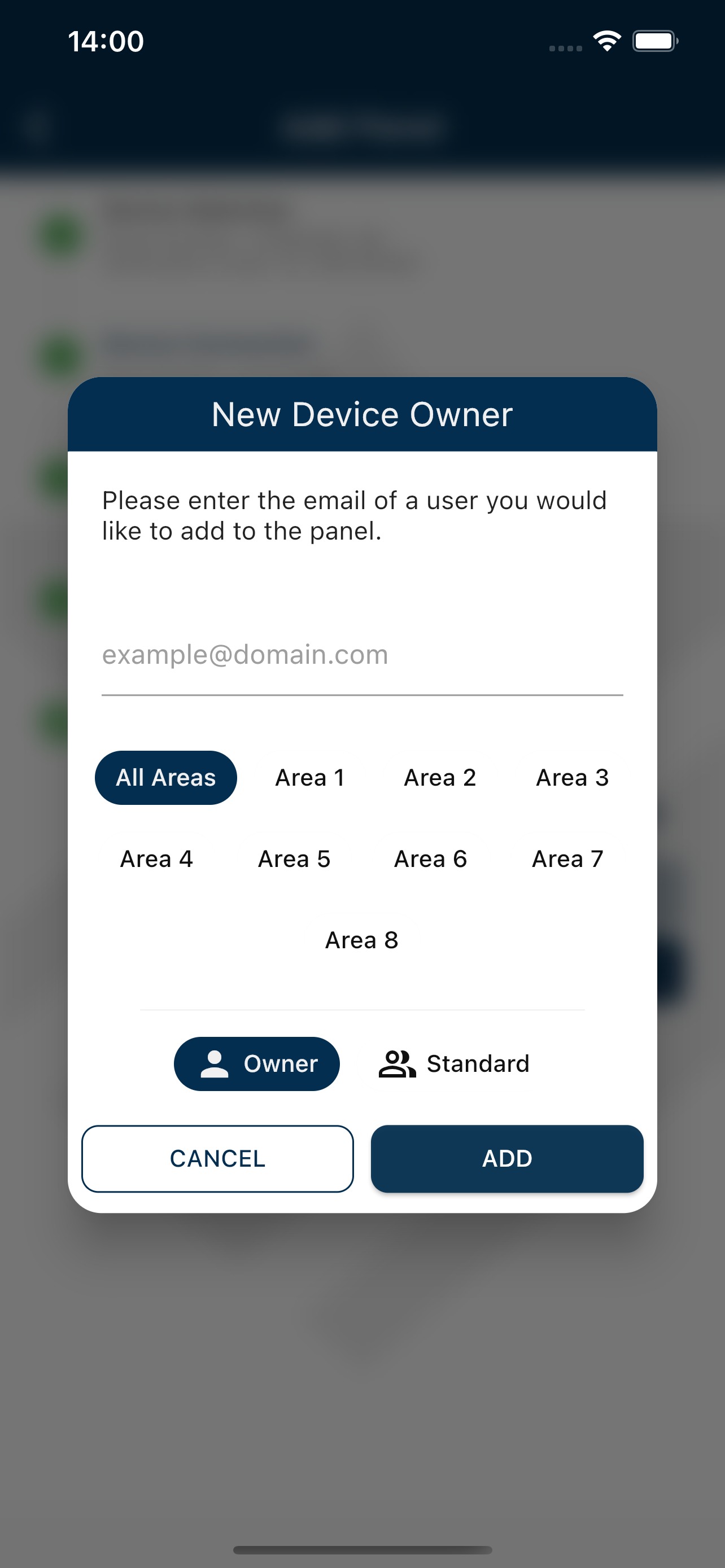
Tap the Plus to add new users. Enter their email address, select the partition access and their role (Owner/Standard). If they are not registered, enter their mobile number as well to invite them to use ArmME.
Tap next. Wait for the device type to be changed and the serial protocol to be set, linked users to be added, removed and/or updated.
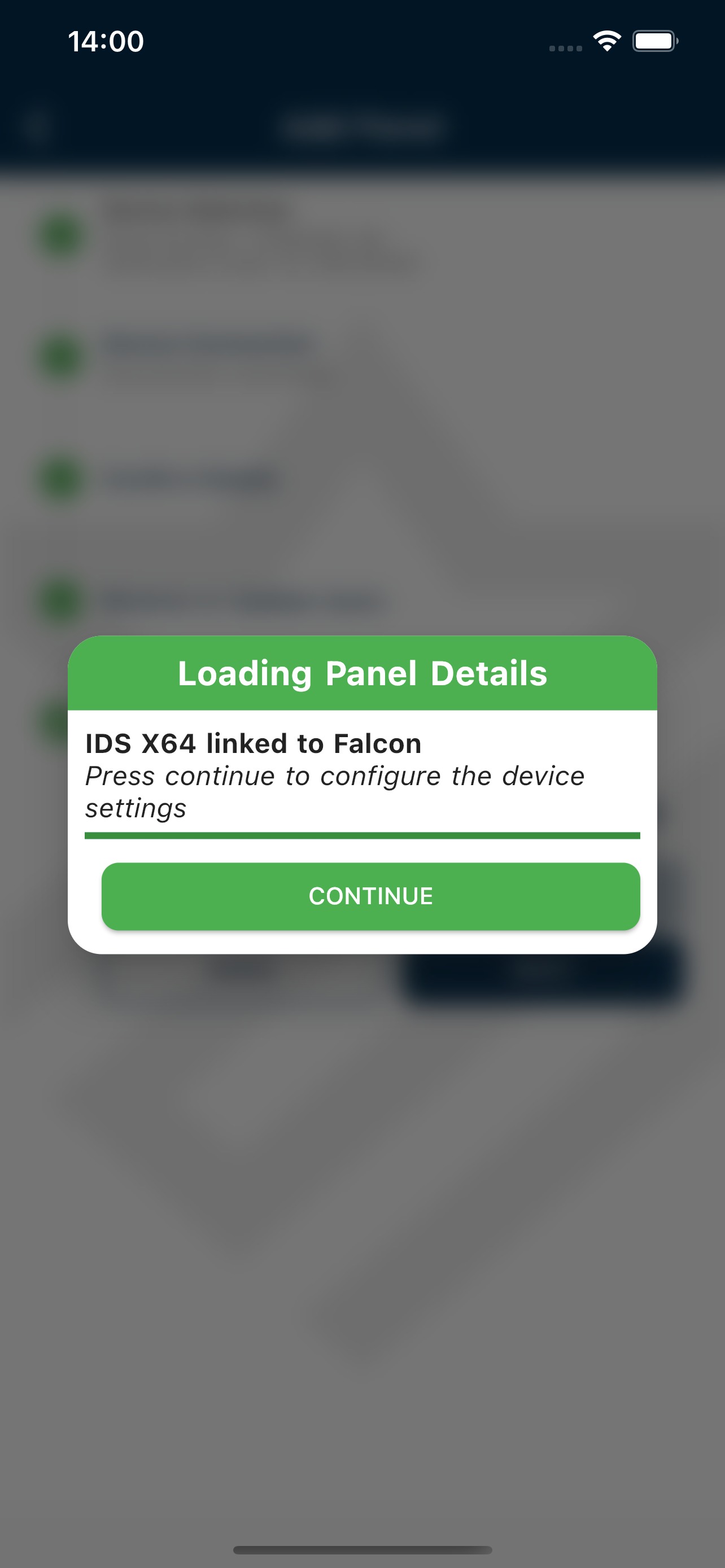
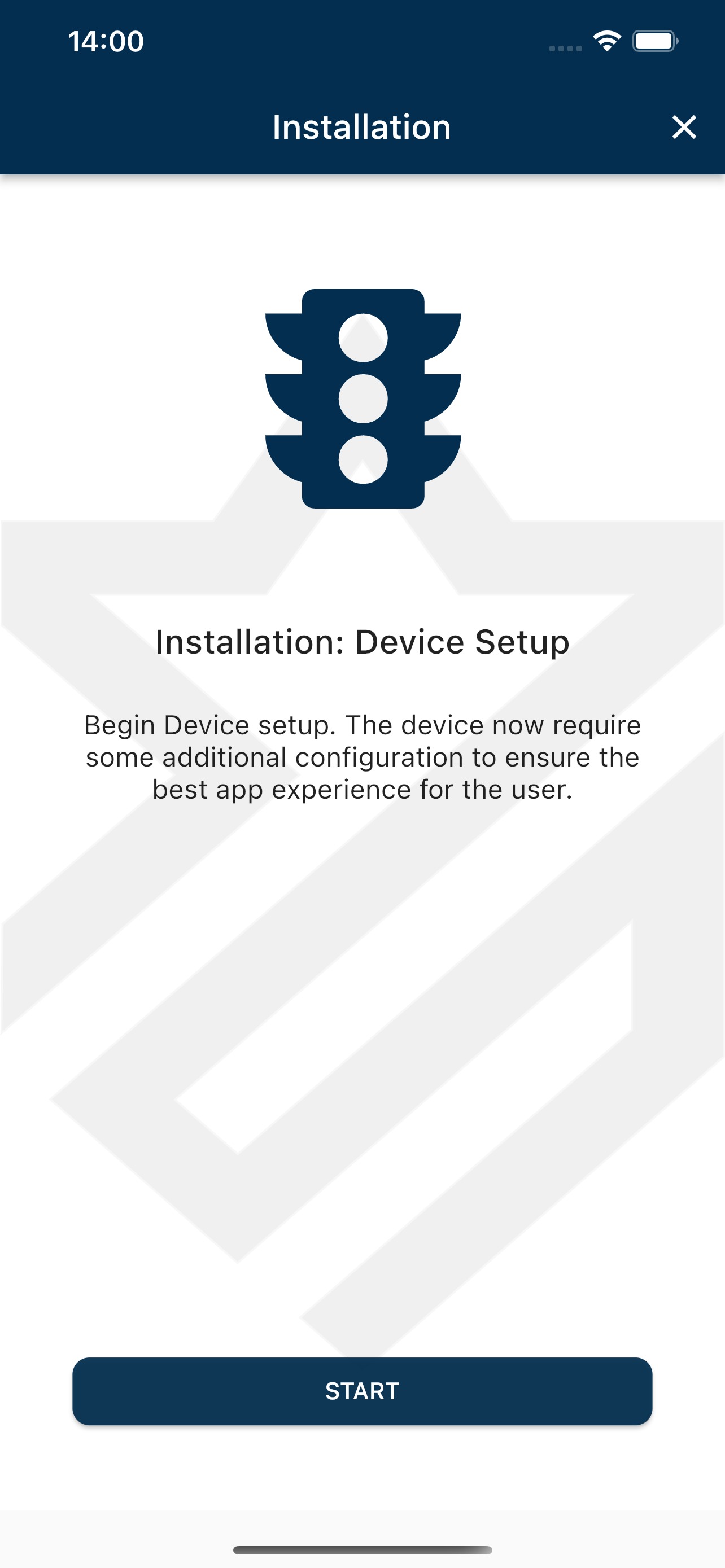
Continue the Device setup and update all the relevant device labels.
Review the completed steps then confirm to end the installation.
Was this article helpful?
That’s Great!
Thank you for your feedback
Sorry! We couldn't be helpful
Thank you for your feedback
Feedback sent
We appreciate your effort and will try to fix the article