1. Open your app and sign in.
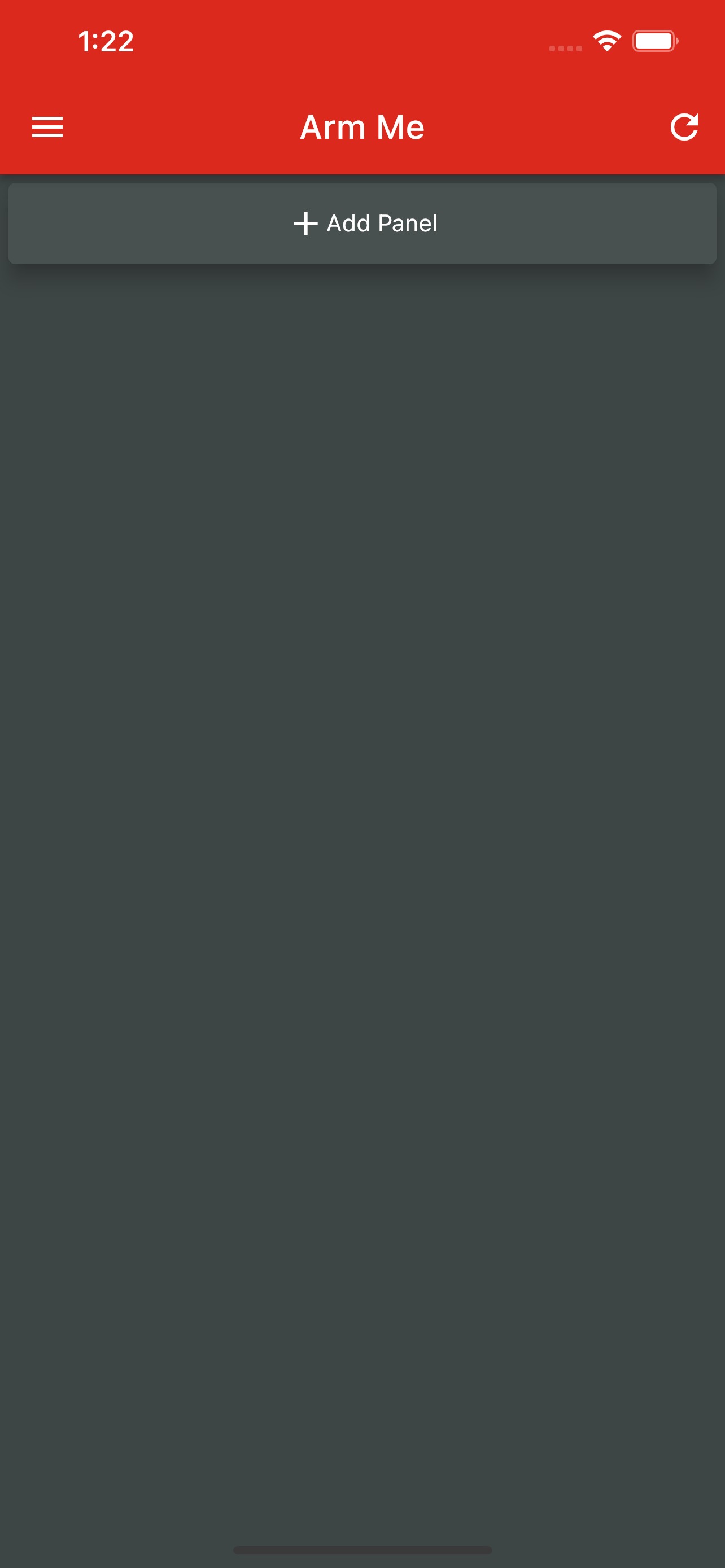
2. Tap on Add Panel.
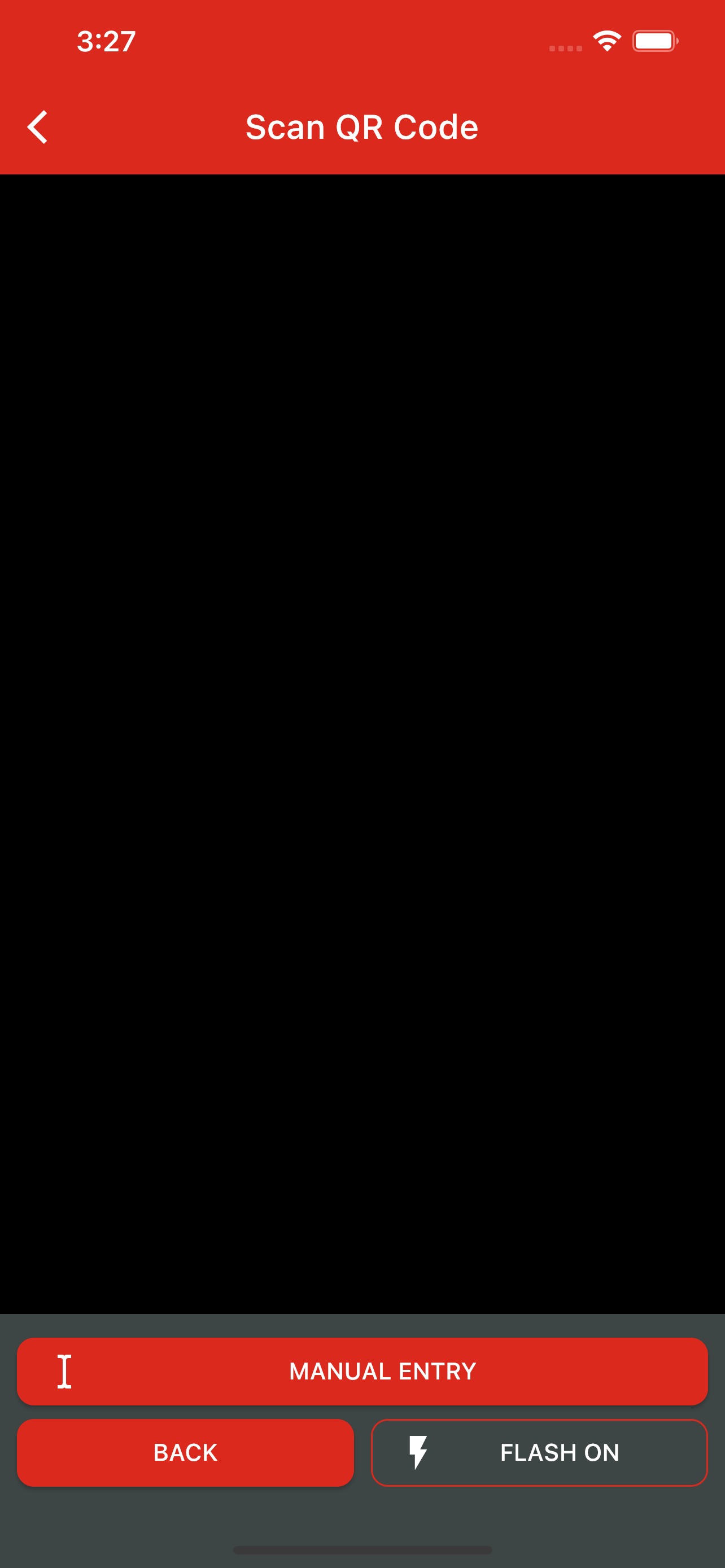
3. Scan your device's QR Code or enter its serial number and verification codes manually.
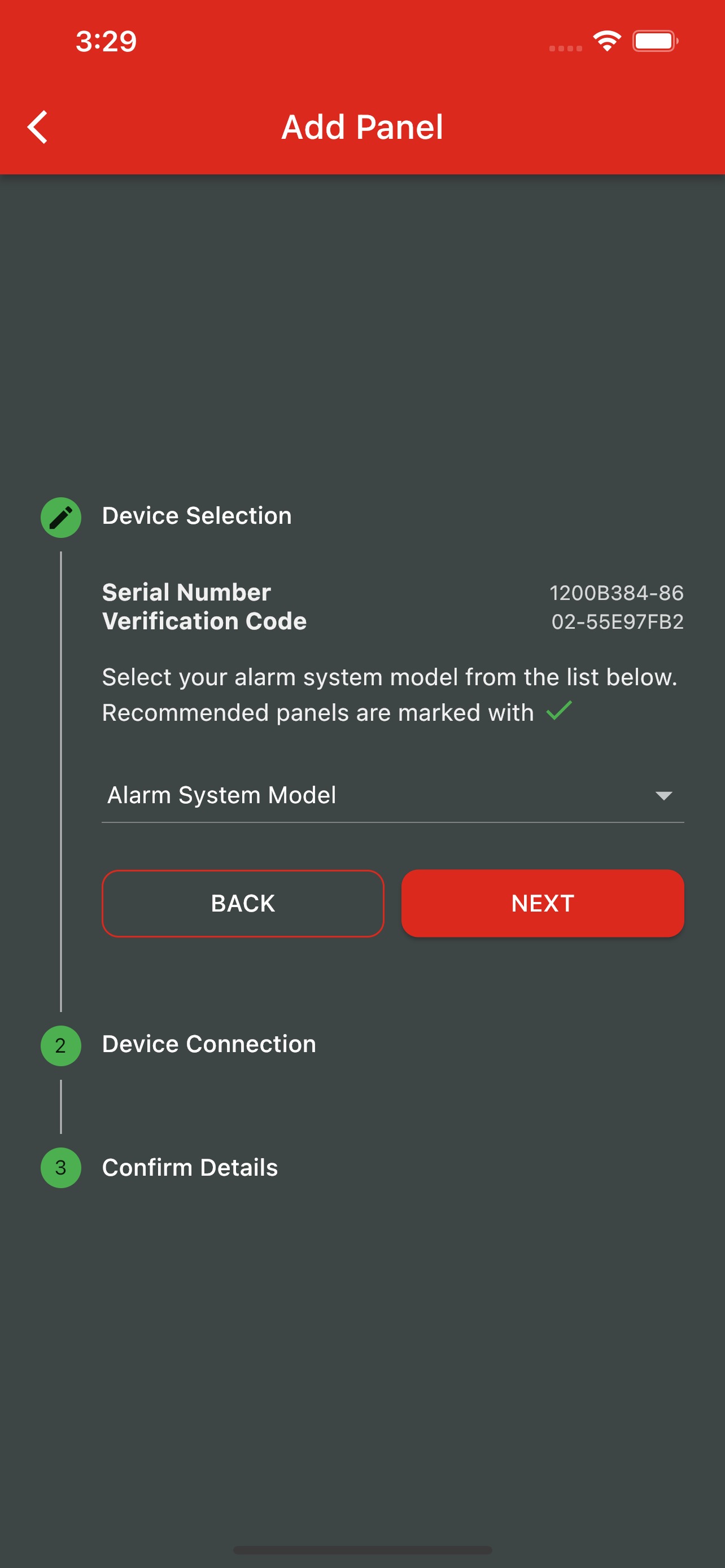
4. Verify that the Serial Number and Verification Code are correct.
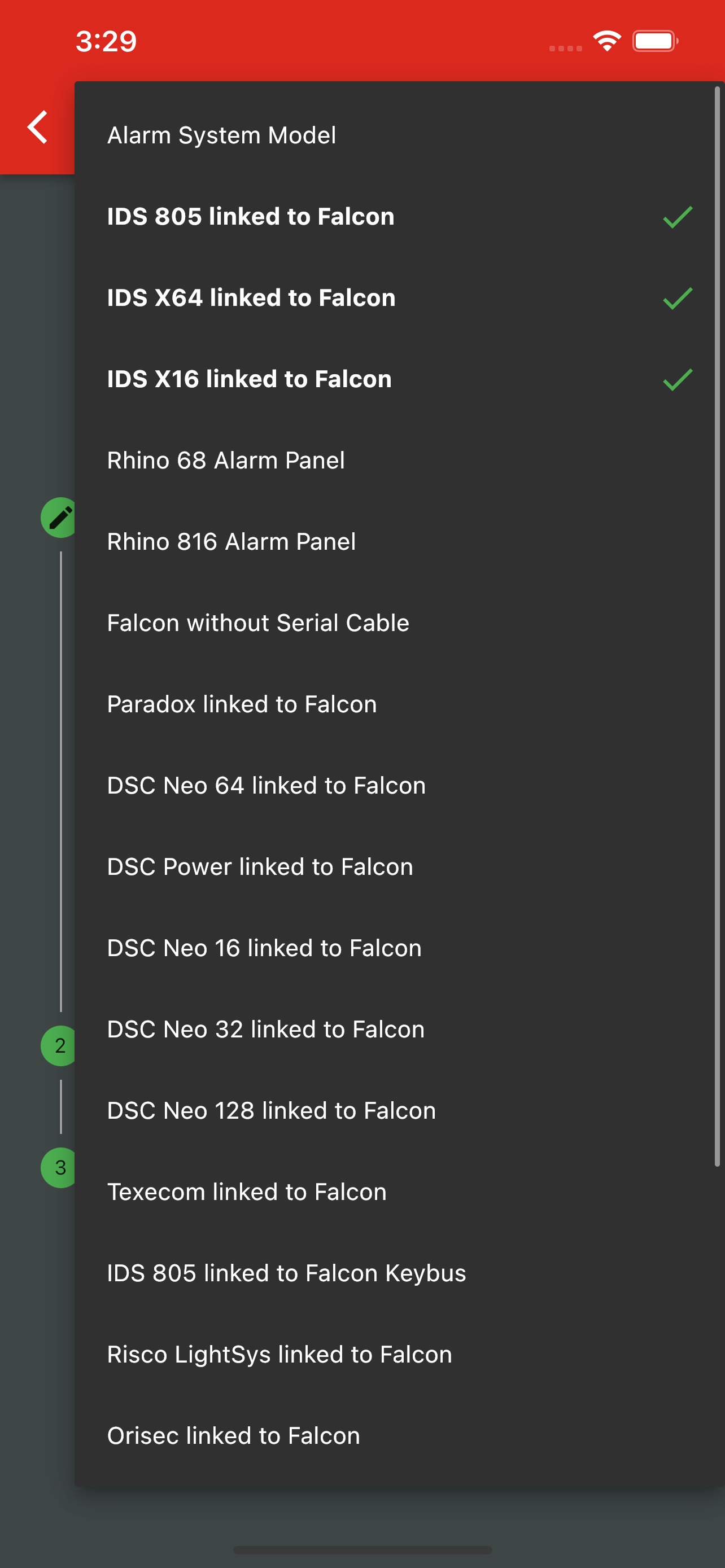
5. Next, choose the panel that you are connecting to.
Recommended panels are marked with a green tick, based on any previous configurations. However, you may choose from any of the supported panels in the drop-down list.
If you are using a plain communicator, and are not connecting to a panel via serial cable, select "Communicator without Serial Cable".
Press "Next" to continue to device connection.
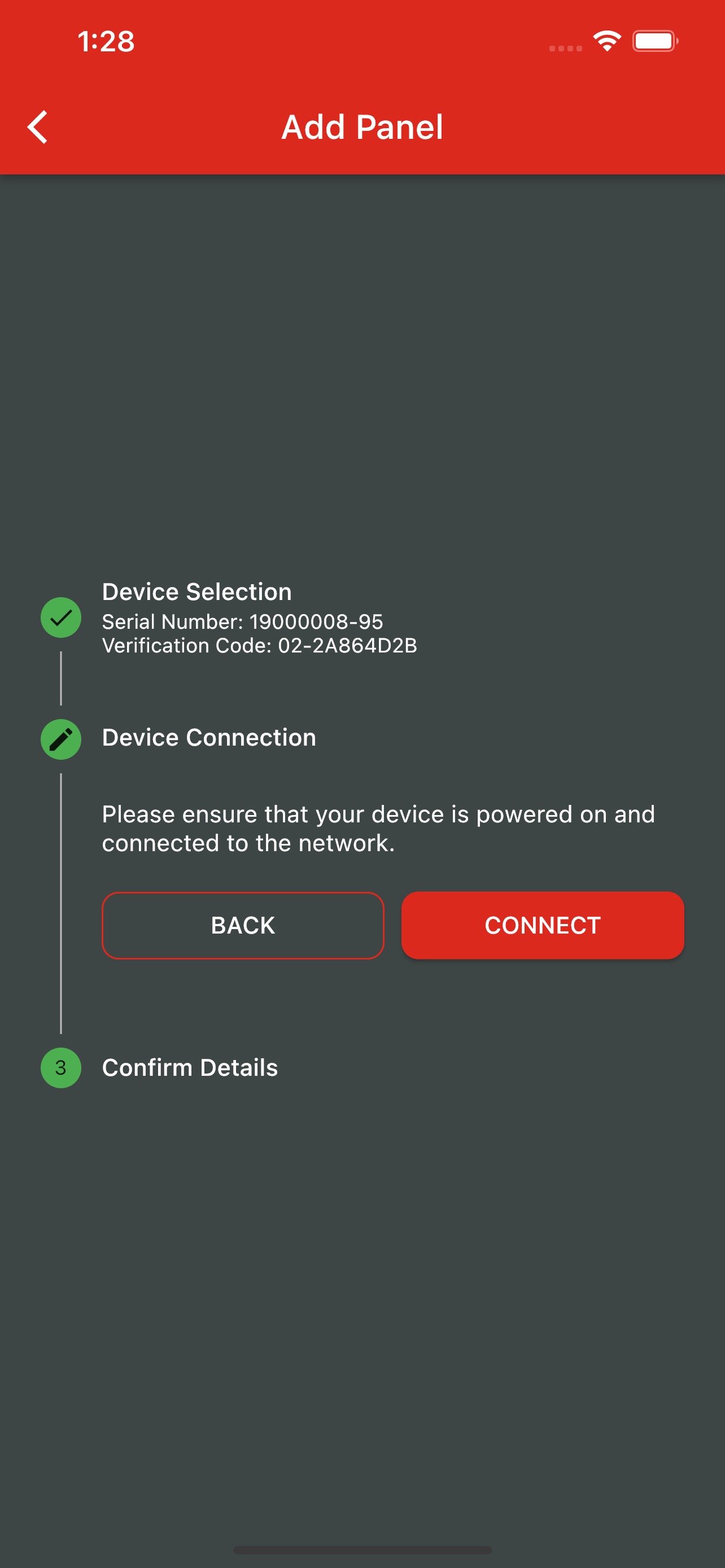
6. Your device should be powered on for this process to complete correctly. Please power it on, and wait for it to connect to the server ("C" and "S" will be flashing). Wait a further 2 minutes after this.
Tap Connect. You may retry if this step fails, or skip to the next step. However, if you choose to skip the connection and your communicator requires its serial protocol to be updated, the serial protocol will NOT be updated, and this must be done so manually.
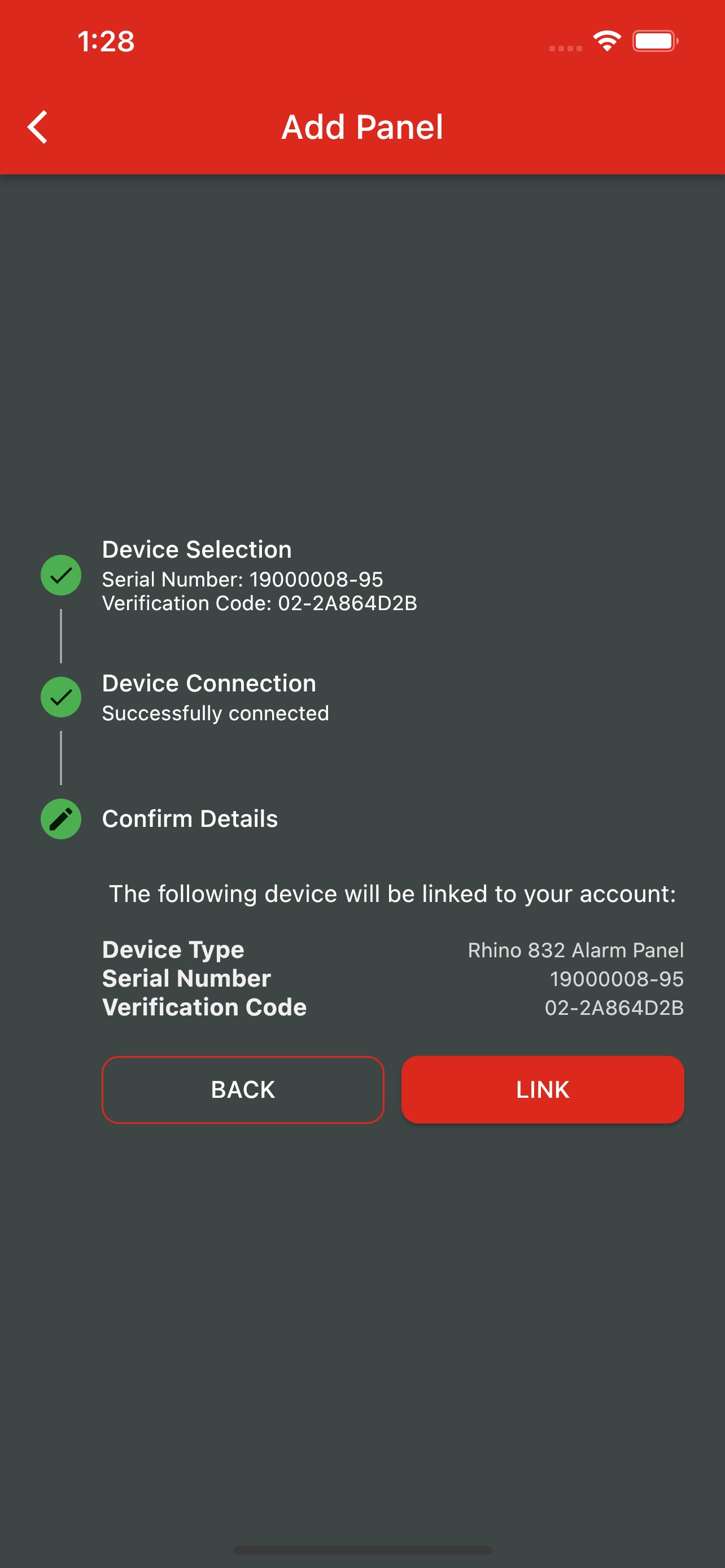
7. Verify the details of the device that you are linking and tap Link to continue.
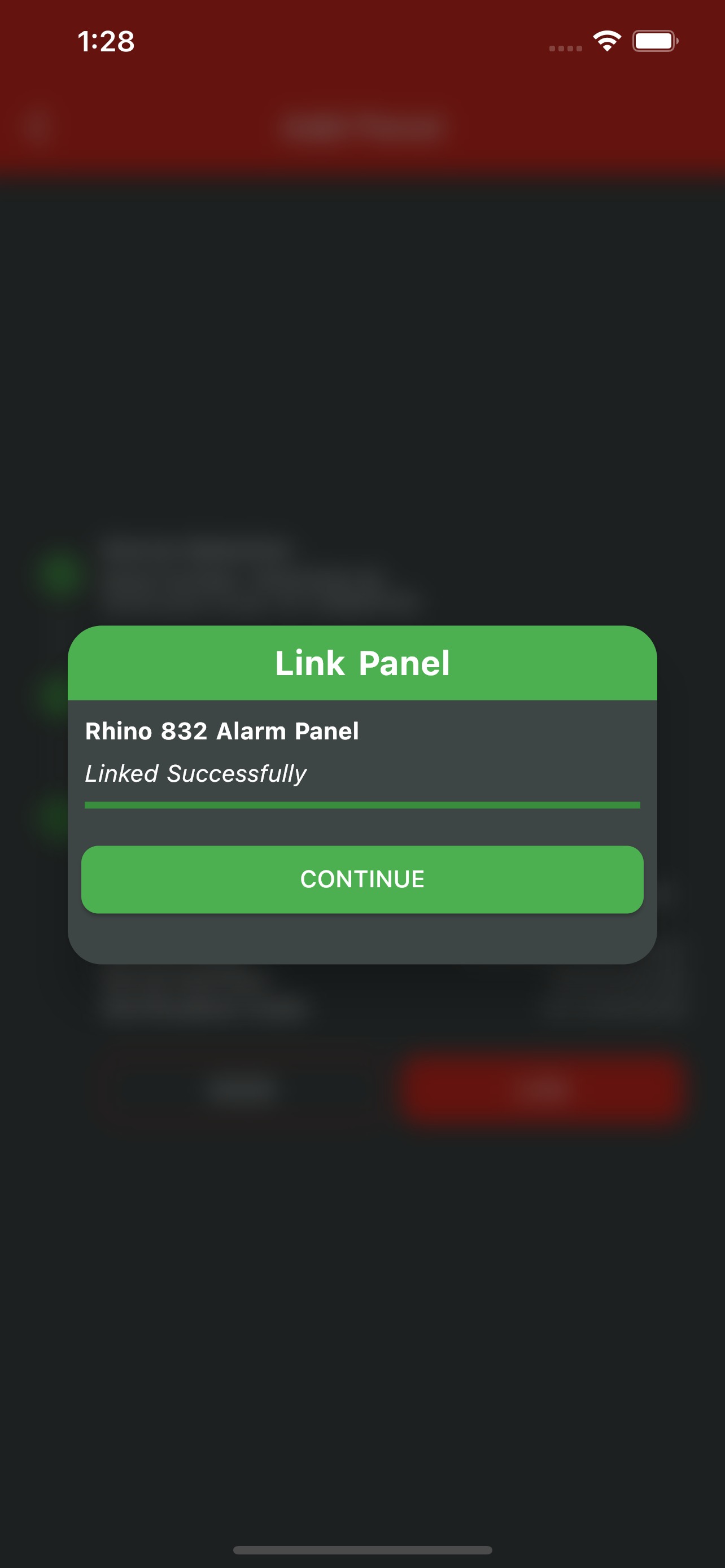
8. Please wait until the process completes. The panel will then be linked to your account and loaded into the app correctly.
Was this article helpful?
That’s Great!
Thank you for your feedback
Sorry! We couldn't be helpful
Thank you for your feedback
Feedback sent
We appreciate your effort and will try to fix the article